
Vewd Snap Data Format Requirements
Introduction
Vewd Snap is an industry-first, end-to-end solution that allows content publishers to create and distribute video apps to the TiVo & Vewd ecosystem quickly and easily for free.
In a few clicks, you can generate a “branded app” optimised for TV and Automotive screens and ready to be enabled for advertising if you so choose.
- In order to create a VOD application using Vewd Snap, all you need is an MRSS feed with metadata about your videos including links to the actual video assets. Most OVP platforms have built-in support for MRSS. Please consult your OVP documentation or contact their support team for more details on how to do it.
- If you just have a single live channel, then you can also use Vewd Snap to publish it to our ecosystem of devices. In that case all we need is the link to that one live stream.
This document explains the Vewd Snap app structure in detail. In addition, it describes how to tailor your MRSS feed to fit your needs. Some of the customisations described in this article are optional but give you the most control of what the resulting app will look like.
To start creating the app with any of these options, use the Submissione Snap Application
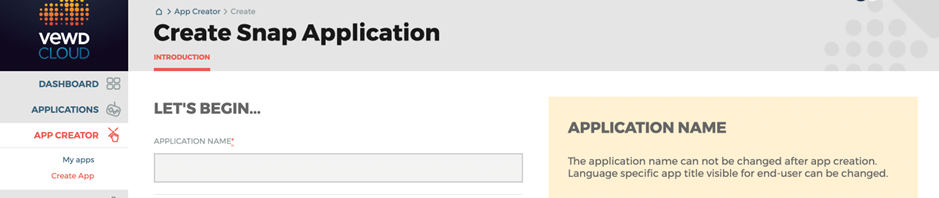
Let’s look more into preparing your MRSS feed and how it is presented in the Snap application now.
Vewd Snap app content structure
Vewd Snap’s content structure is based around four elements: Sections, Categories, Collections and Items. The image below shows the placement of these elements in the application UI.
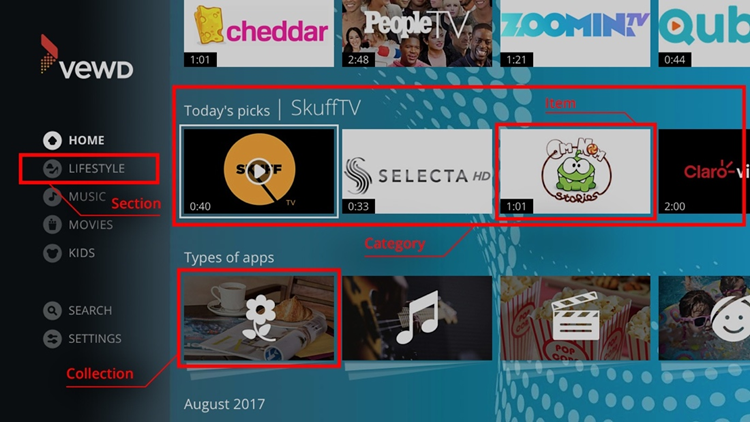
Sections
A Section is displayed on the left side menu of the application. Some sections can be customised (custom sections) while others are part of the application and cannot be changed (automatically generated sections).
The automatically generated sections are Settings and Search.
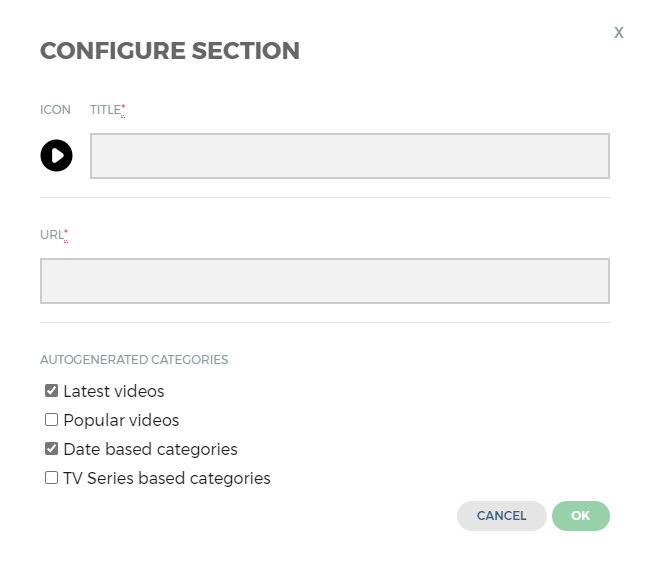
Custom sections are defined during the application submission under Content and Graphics > Snap Configuration: by pressing the “Add Section” button you will get a popup to configure the section name and provide the MRSS feed that will be used to populate it.
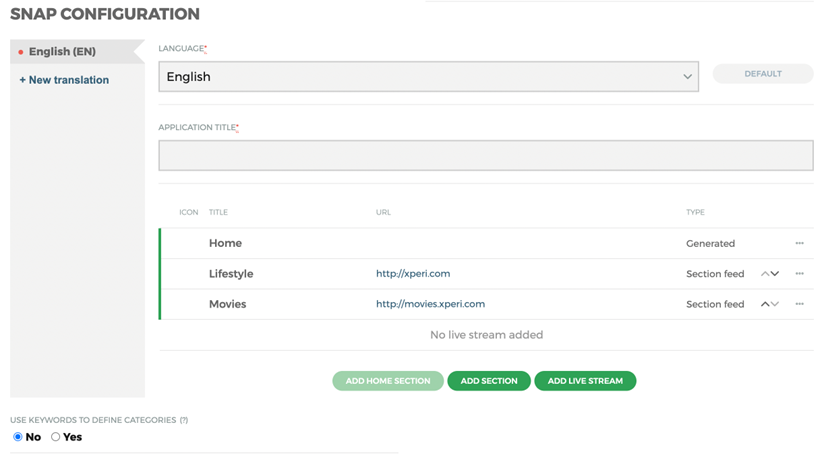
Home section
The Home section is a special (optional) section that can either be generated automatically (by pulling content from other sections) or be populated using a custom feed. Home section will always be at the top of the sections list and can’t be moved.
Category
A Category is a single row of videos and/or collections in the application. In the MRSS feed, it is represented by the <media:category> tag associated with videos. Please note the following: to optimise user experience, we only show a Category (row) if it contains at least 3 videos. If fewer than 3 videos are associated with a single category, then the Category (row) will not appear in the final app, and the corresponding videos will only be visible in other categories that meet the criteria (if
any) or in the general autogenerated categories like “Latest Videos” (see below). If there is only one
category in the feed, its name is not displayed in the application UI.
Some categories are generated by the application and cannot be changed (automatically generated categories). Automatically generated categories are:
- Latest Videos – a selection of latest videos based on the item’s publication date specified in the MRSS feed.
- Popular videos – most popular videos; the selection of videos in this category is based on Snap API’s recommendation engine. This category is disabled by default and can be enabled with a checkbox when creating a category.
- Today’s picks – a selection of 20 videos picked randomly every 24 hours; this category is displayed only in the Home section.
It is also possible to generate categories based on the <media:keywords> tag as opposed to the <media:category> tag. See the description of the <media:keywords> tag further in this article if you would like to use it.
If the feed does not contain categories and keywords were not used to generate categories, Snap will then generate categories automatically by aggregating video clips based on their publication dates.
- Publication date is based on the
<pubDate>tag from the feed. - These categories initially aggregate videos on a monthly basis. If such a category contains only a few videos, then videos from the next month are added to fill it up.
- The first entry (e.g., first month) is removed to avoid similarity with the Latest Videos category.
Collection
A Collection is a single element in the application’s category row. It may look like a single video, but it represents the collection of multiple videos and categories located inside. In the MRSS feed, it is represented by the <vmrss:categoryData> tag.
Collections can be nested. The nesting of collections is defined in the path attribute of <vmrss:categoryData> tag, with each level of nesting separated with a slash. For example, Winter/Events path for Events collection defines Events collection as a child of Winter collection. There are no limits to the nesting of collections. In theory, an infinite number of levels can be used, but it is best to limit your levels of nesting to two or three. More levels can make navigation too complicated for the users. Collections should not be used if the selection of the content is not big. For example, if, in total, there are only 20 video clips or less available in the feed it is better to have them available in the section without breaking down to collections.
Item
An Item is a single video. It is represented by the <item> tag in the MRSS feed. Items can belong to collections, categories and sections. Single items can belong to multiple categories and collections (for details see the MRSS Item structure below).
Video thumbnail for the video can be in either landscape or portrait orientation. To use portrait orientation MRSS needs to include a thumbnail size; otherwise, landscape orientation will be assumed, and the thumbnail will be trimmed. See the next chapter for details.
When preparing content, UI and navigation issues should be considered. For example, using numerous items or collections in one structural element (collection or category) will make the application difficult to navigate. It is recommended not to use more than 10 elements (items, collections, categories) in a single higher-level element (collection, category or section). This means that it’s better to create more categories than place many collections into a single category. Also, in the case of many categories, it’s better to divide them into separate sections.
The application can use multiple languages and the structure described above can be localised by language. In the submission portal, submitter can define the language for the application. If there is more than one language, the whole content structure should be prepared and submitted as per each language. This means submitting a new MRSS feed (or multiple feeds when the application uses multiple custom sections) for each language.
Streaming specifications
Snap applications support progressive video playback and adaptive streaming over HTTP (HLS). The support of video streaming may vary depending on the specific app version and platform capabilities.
Vewd Snap MRSS feed (SMRSS)
Vewd Snap leverages the Media RSS specification as baseline with some extensions (SMRSS). Please note:
- The feed used during the creation process must point to an MRSS compliant XML file.
- It is ok for the MRSS file to contain more tags than Vewd Snap supports. These tags will be ignored.
- While a regular MRSS file is sufficient to create a simple Vewd Snap application, our SMRSS format is recommended and contains many improvements. Feed without media namespace will be parsed, but support for this format might be removed in the future.
Before starting to prepare your MRSS feed for Vewd Snap, it might be good for you to familiarise yourself with the following specifications and resources:
- RSS specification, the base standard for the MRSS specification
- MRSS specification, used as the base for the Snap MRSS specification
- RSS feed validator, used to validate the main structure of the feed. Note: this is a generic validator, not specific for Vewd Snap.
- RFC822, a spec for date and time formats
- HTML5 Audio and Video Support in Vewd App Store Applications
The Basics
Required tags are:
-
<rss>as a top-level tag. - One
<channel>as a child of<rss>. -
<channel>must contain<title>and at least one<item>. - Each
<item>must be a child of<channel>.
Optional tags:
-
<vmrss:metadata>as a child of<channel>. This custom extension to the MRSS spec allows a more flexible definition of content structure. See below for more details.
Feed structure:
<rss xmlns:media="http://search.yahoo.com/mrss/" xmlns:vmrss="http://snap.cloud.vewd.com/vmrss/" version="2.0">
    <channel>
        <title>Channel Title</title>
        <description>Description of channel content</description>
        <vmrss:metadata>
            <!-- categoryData items – see next section -->
        </vmrss:metadata>
        <item><!-- See example in next section --></item>
        <item><!-- ... --></item>
        <!-- More items -->
    </channel>
</rss>
2.2 Display special characters or markup
Whenever characters such as <, >, &, ", or ' or a markup needs to be displayed, the CDATA section or XML entities < > & " ' should be used. CDATA will disable markup recognition.
Please refer to http://xml.silmaril.ie/specials.html and https://www.w3resource.com/xml/CDATA-sections.php for more information.
<rss xmlns:media="http://search.yahoo.com/mrss/" xmlns:vmrss="http://snap.cloud.vewd.com/vmrss/" version="2.0">
<channel>
<title>News & Weather</title>
<description><![CDATA["News & Weather" channel.]]></description>
<item><!-- Example item here --></item>
<!-- More items -->
</channel>
</rss>2.3 Metadata tag extension
<vmrss:metadata> is a custom extension to MRSS that has been defined to overcome limitations of the original MRSS spec. Inside <vmrss:metadata>, you can use <vmrss:categoryData> to define categories and collections (i.e., categories nested inside other categories).
Required attributes of categoryData:
- path argument defines category nesting. For each nested category you should define exactly one categoryData with the correct path. In nested category strings, slash must be used as the separator.
- label is the name of the category as it will be presented to the user.
Optional attributes of categoryData:
- description is a description of the category.
- order argument is optional. If it’s not passed, then the order will be based on the MRSS feed order.
-
thumbnail, thumbwidth and thumbheight are used to provide a custom thumbnail for the category.
- If thumbwidth and thumbheight are not provided, landscape orientation will be assumed and the thumbnail will be trimmed.
- Please note that the first image in a row determines the orientation of the video thumbnails in the whole row. The same image orientation (portrait or landscape) should be used throughout the whole application. Mixing various image orientations will cause problems with cropping images in automatically generated categories.
Important: If you use <vmrss:metadata> to define categories, then in <media:category> you should use the string you used for the path attribute (in <vmrss:metadata>), as the user-visible category name will be taken from the value of the label attribute of <vmrss:categoryData>.
Example:
<vmrss:metadata>
    <!-- 1st category level -->
    <vmrss:categoryData order="1" path="videos" label="Clips" description="Section with cool clips."/>

    <!-- 2nd category level -->
    <vmrss:categoryData order="1" path="videos/fail" label="Fail Compilations" description="Fail compilations" thumbnail="http://domain.com/category55image.jpg" thumbwidth="270" thumbheight="405" />

    <vmrss:categoryData order="2" path="videos/cats" label="Cute Cats" description="All the cute cats in one place" thumbnail="http://domain.com/category55image.jpg" thumbwidth="416" thumbheight="234" />

    <!-- 3rd category level -->
    <vmrss:categoryData order="1" path="videos/cats/black" label="Black Cats" description="Only black cats" />

    <vmrss:categoryData order="2" path="videos/cats/white" label="White Cats" description="Only white cats" thumbnail="http://domain.com/category55image.jpg" thumbwidth="256" thumbheight="144" />
</vmrss:metadata>
2.4 Item tag
The following children of the <item> tag are required:
-
<title>or<media:title> -
<media:content>with correct url & type.- You might also use
<media:group>to group multiple media elements (like video in different formats). - Content might also contain duration and bitrate.
- Duration should be set by number of seconds.
- For widest device support and best user experience, we recommend making sure that your minimum bitrate doesn’t exceed 4000 kb/s. Higher bitrate can be supported using adaptive bitrate streaming formats (e.g., HLS).
- The value of the url attribute must be unique across the whole MRSS feed. In other words you should make sure there is only one
<media:content>element for each unique URL. Failing to do so might lead to unexpected results.
- You might also use
-
<media:thumbnail>with correct url pointing to an image.- Snap supports both landscape and portrait video thumbnail orientation. Please note that the first image in a row determines the orientation of the video thumbnails in the whole row. The same image orientation (portrait or landscape) should be used throughout the whole application. Mixing various image orientations will cause problems with cropping images in automatically generated categories.
- Snap will detect portrait orientation of thumbnail based on its width and height attributes provided in the MRSS feed. Those are optional parameters. If missing, Snap will assume landscape orientation.
- If the portrait thumbnail is used without width and height attributes, then Snap will assume landscape orientation and will crop the thumbnail accordingly.
- Thumbnails should be at least 416x234 (16:9) for landscape image and 270x405 (2:3) for portrait thumbnails. If other proportions are used, then Snap will crop and resize it to the desired size.
- If there is more than one thumbnail, then the best one will be selected based on width attribute (if present).
-
At least one
<category>or<media:category>must be present, but more are allowed if an item (video) belongs to more than one category. The value of the<media:category>can be either free text or a “path” that matches the one provided via the path attribute of the<vmrss:metadata>in case the item belongs to a nested category (e.g., to “black” under “videos/cats/black”) make sure to provide the full path. -
<media:rating>tag is mandatory in some countries. It is highly recommended to provide it for all content.
The following children of the <item> tag are optional:
-
<pubDate>publication date of the video. It is used in different ways:- It is visible to the end user in the description of the video.
- It is used in the auto-generated Latest Videos category where videos are sorted by publication date.
- It is used when auto-generating categories based on publication date (for apps built on one MRSS feed without category information).
- Needs to be RFC-822 or ISO-8601 compliant.
-
<description>or<media:description>if it exists it will be displayed as the description for the video. -
<media:keywords>for content keywords. Keywords are indexed by an application and used for search purposes. Keywords can also be used instead of categories if this option was chosen during submission (field ‘Use keywords to define categories’ must be selected). -
<media:subTitle>for specifying the subtitles as follows:- Must contain href or url attribute that points to the subtitle file in the WebVTT format.
- Other formats are not guaranteed to be supported on all devices.
- Must contain lang attribute to define subtitle language based on the RFC 3066.
- More than one such tag per media element can be used e.g., once per language.
-
<vmrss:orderInCategory>is used to set the order of the item in the category. If an item is in many categories, then it can have the order set to each category separately. It requires two attributes:-
pathwith the same value as defined in the category. -
valueas a number (ascending).
-
-
<vmrss:mode>is used to specify the type of the content (either a video on demand or a live stream). By default, it will be set to vod if this tag is not specified. Allowed values are:- vod
- live
Example item structure:
<item>
    <pubDate>Mon, 21 Mar 2016 11:00:01 GMT</pubDate>
    <media:title>
        Sam Smoothy Follows His Fathers
        Footsteps In The Andes | Lost...
    </media:title>
    <media:description>
        Many years ago, Sam Smoothy's father
        climbed in the Andes mountains...
    </media:description>
    <media:category>Skiing</media:category>
    <media:category>Winter/Events</media:category>
    <vmrss:orderInCategory path="Winter/Events" value="12"/>
    <media:content url="video.mp4" type="video/mp4" bitrate="2200" duration="772"/>
    <media:thumbnail url="thumb.jpg" width="416" height="234"/>
</item>
Rating tag
Vewd Snap can collect multiple ratings and schemes for a single <item>. Values need to be provided in separate <media:rating> tags.
Example:
<item>
    <pubDate>Tue, 12 Mar 2023 16:35:01 GMT</pubDate>
    <media:title>Here’s What Rating Means</media:title>
    <media:description>
        A long time ago in ratings community...
    </media:description>
    <media:category>Information</media:category>
    <media:content url="video.mp4" type="video/mp4" bitrate="2200" duration="772"/>
    <media:thumbnail url="thumb.jpg" width="1280" height="720"/>
    <media:rating scheme="urn:bbfc">15</media:rating>
    <media:rating scheme="urn:fsk">16</media:rating>
    <media:rating scheme="urn:mpaa">pg</media:rating>
</item>
Korean Media Rating Board (KMRB) Schema
KMRB scheme is complex and cannot be expressed using a single <media:rating> tag. It consists of:
- rating category,
- guideline (determined by 7 key factors),
- serial number,
- company name.
To meet the requirements, Snap accepts extended scheme names:
-
urn:kmrb:category- Main rating of the content.
- Values (All, 12, 15, 18) are taken from the official site: [KMRB Rating Categories](https://www.kmrb.or.kr/eng/CMS/Contents/Contents.do?guide`
- Guideline which accepts three numeric values separated by dash.
- Values and their meaning are described on the official rating site: KMRB Guidelines
utor` * Distributor represents the name of the company that submitted the title to KMRB.
-
urn:kmrb:sn- Serial number of rating.
Example:
<item>
    <pubDate>Tue, 12 Mar 2023 16:35:01 GMT</pubDate>
    <media:title>Here’s What Rating Means</media:title>
    <media:description>
        A long time ago in the ratings community...
    </media:description>
    <media:category>Information</media:category>
    <media:content url="video.mp4" type="video/mp4" bitrate="2200" duration="772"/>
    <media:thumbnail url="thumb.jpg" width="1280" height="720"/>
    <media:rating scheme="urn:kmrb:category">12</media:rating>
    <media:rating scheme="urn:kmrb:guide">1-6-7</media:rating>
    <media:rating scheme="urn:kmrb:distributor">mycompany</media:rating>
    <media:rating scheme="urn:kmrb:sn">12345-a7548f</media:rating>
</item>
Snap allows you to structure content based on TV series tags using the frequency namespace.
Official documentation: [https://docs.frequency.com/en/content-deliveryguidelines/mrss-ingestion.html
Frequency namespace tags specification:
TV Series Tags (Frequency Namespace)
Snap allows structuring content based on TV series tags using the frequency namespace.
| Type | Tag | Specification | Default value | Optional parameters |
|---|---|---|---|---|
| Series Title | <frequency:seriesTitle> |
Title for series. Needs to be included in order to index series. Used to identify series. | - | - |
| Episode number | <frequency:episode> |
Required for video to be treated as a part of series. Needs to be an integer. | - | - |
| Series Description | <frequency:seriesDescription> |
Description for series. Latest occurrence will be indexed. | null | - |
| Series image | <frequency:seriesThumbnail> |
A thumbnail image representing the series. | null | width: integer, height: integer |
| Season number | <frequency:season> |
Indicates in which season the episode is located. Needs to be an integer. | 1 | - |
Example:
Example:
<item>
    <pubDate>Wed, 20 Mar 2023 12:34:51 GMT</pubDate>
    <media:title>My third episode</media:title>
    <media:description>Continuation...</media:description>
    <frequency:seriesTitle>Good Suits</frequency:seriesTitle>
    <frequency:season>1</frequency:season>
    <frequency:episode>3</frequency:episode>
</item>

<item>
    <pubDate>Tue, 21 Mar 2023 12:34:51 GMT</pubDate>
    <media:title>Start of second season</media:title>
    <media:description>In this episode suits are fabulous!</media:description>
    <frequency:seriesTitle>Good Suits</frequency:seriesTitle>
    <frequency:season>2</frequency:season>
    <frequency:episode>2</frequency:episode>
</item>
Provided example will result in creation of:
- A second episode of title Absolutely fabulous in the first season of series Good Suits
- A third episode of title My third episode in the first season of series Good Suits
- A first episode of title Start of second season in the second season of series Good Suits
- A first season of series Good Suits
- A second season of series Good Suits
- A series called Good Suits
Feeds availability
Since our server is being distributed, in general we require feeds to be accessible. It is important that your MRSS feeds are available worldwide without any restrictions to e.g., location, IP addresses, User Agents or other. If any restriction is set, then TV Snap servers may not be able to access and present your content.
In case it is a must-have to limit access to your feeds by white-listing IP addresses then please use the below list. Please note that we recommend not applying any restriction if not really needed though.
The following IP addresses must be allowed to access MRSS feeds:
- 167.100.112
- 167.100.113
- 26.182.90
- 26.182.94
- 165.86.48
- 17.35.152/29
- 22.251.128/29
- 203.97.128/25
- 217.214.0/24
- 217.212.0/24
Feed re-indexing rate
Feeds are indexed by our system on submission. After that, we periodically check changes in the feed and update our index. The default refresh rate is around 6 hours. This means that any change to your content availability (adding or removing videos or change of metadata) might take up to 6 hours to show up in the actual application. If you require a more frequent refresh share.
In the case where feeds include URL that may expire (e.g., URL includes a token that needs to be refreshed periodically), then such URLs should remain valid within those 6-hour periods plus in addition a few more hours longer to let this change be propagated on devices where the application is launched.
Best practices
The MRSS feed’s structure (e.g., categories, collections, item’s structure, and nesting) and content can be changed after submission. We recommend updating the video content in feeds periodically and often (especially adding new content) as an incentive for end users to run the app regularly. Although, the content structure should not change that often (e.g., categories, collections, item’s structure, and nesting).
If there is no new content for a certain period then the Today’s Picks category comes in handy (it will automatically rotate the existing content); however, it will not replace fresh content.
It is best to test the changes before publishing. To test submitted content, use the ‘Preview’ function in the Submission portal.
Graphical assets
Some graphical assets used by an application are provided through the Submission portal, whereas other ones are provided in the MRSS feed. See below for details.
Wherever graphic assets are provided in the MRSS feed, an absolute URL to your image file must be used as a tag value or attribute.
Logo
The Logo of your application is presented in the top-left corner of the app. The Logo is provided through the submission portal and is not a part of the MRSS feed.
A 612x612 PNG or JPEG image file is required, with a max size of 500 kilobytes.
4.2 Items and collections thumbnails
For items and collections image guidelines see the item example section above.